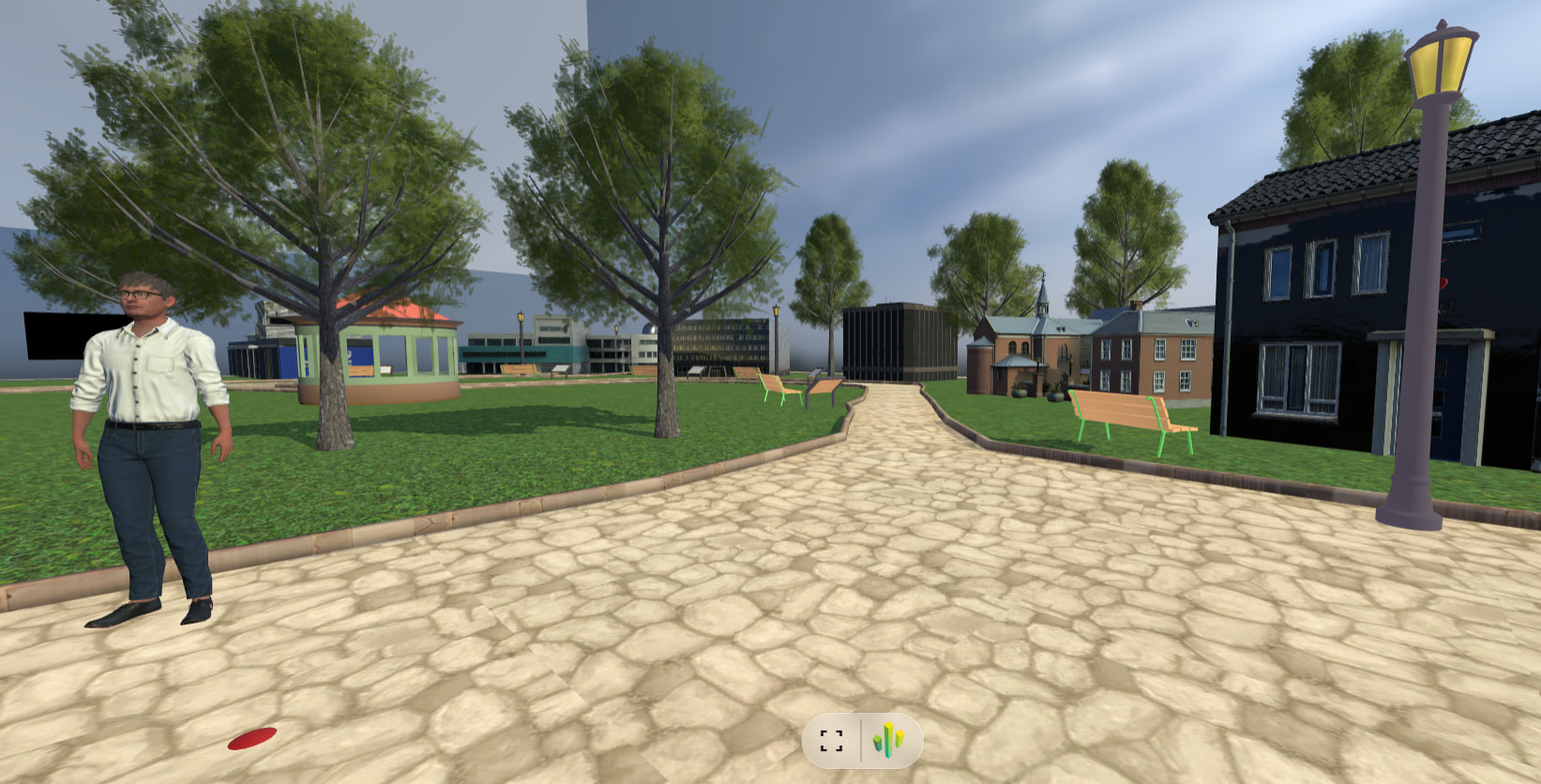
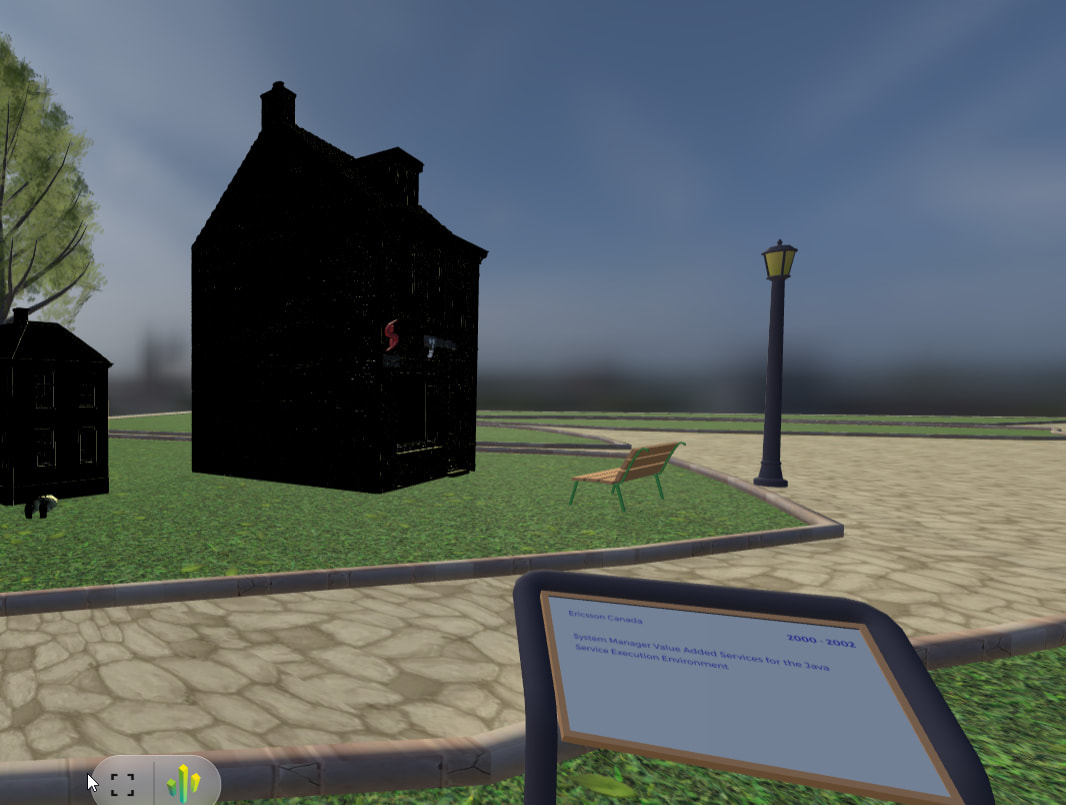
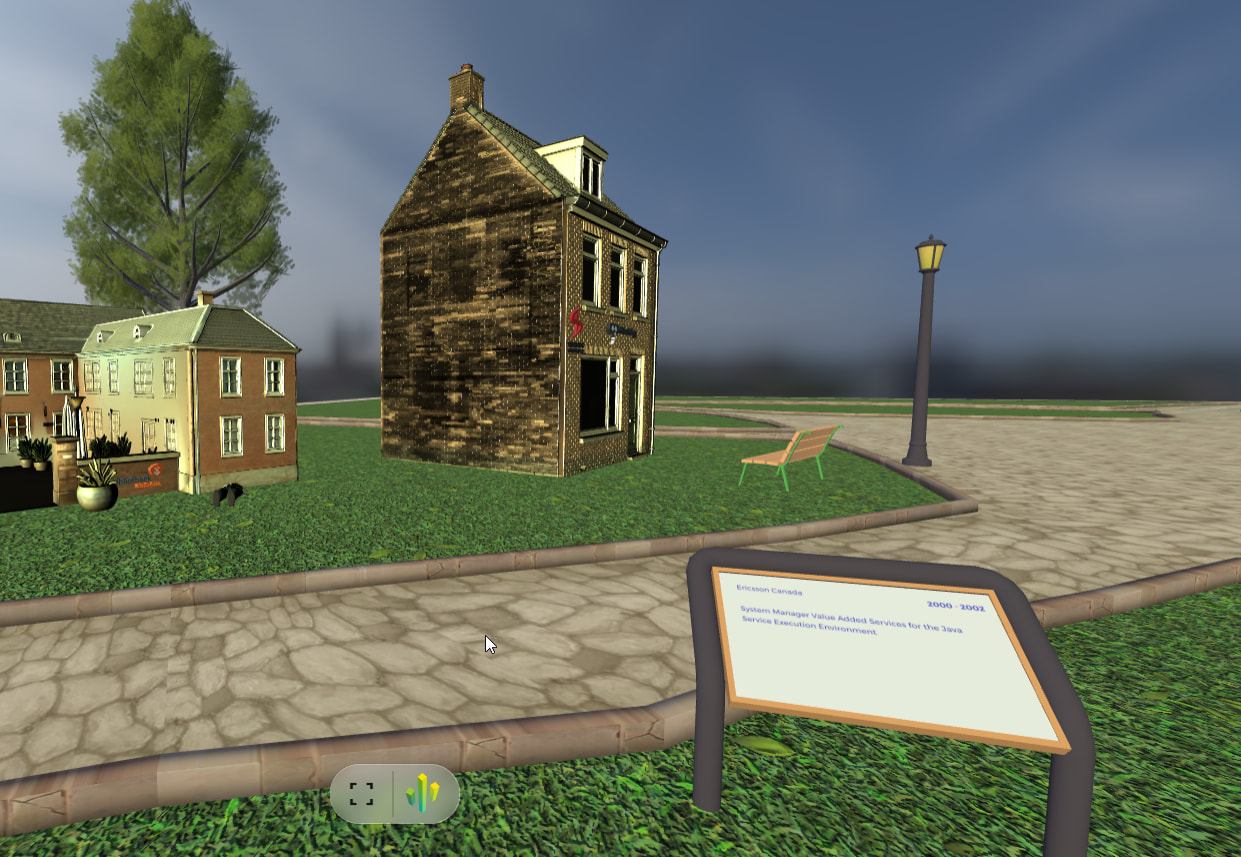
In my scene I have a combination of a Realtime directional light and a baked area light. In the Unity editor all objects have a shadow, generated by the directional light. The area light does not generate shadows.
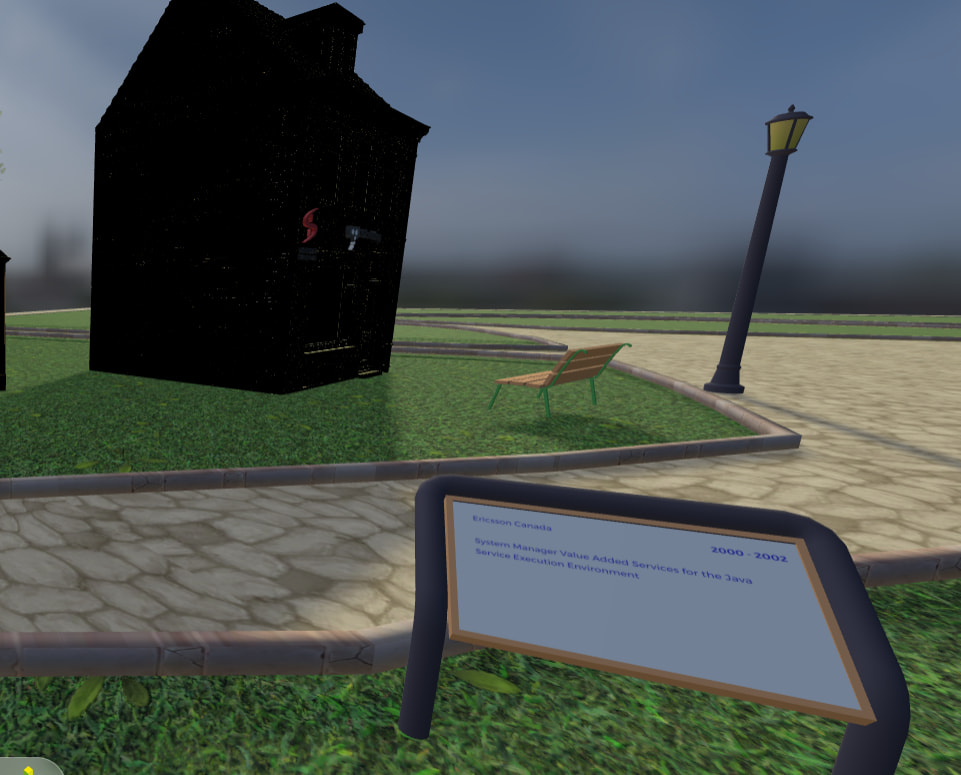
But in the generated scene in the browser only some objects have a shadow. As you can see in the image below, the two trees and the bench have a shadow, just as a small part of the curb. But the lamppost and other benches and the house don’t have a shadow.
This is a known Needle/Three.js behavior, not a Unity bug. The FAQ covers it directly:
For directional lights the position of the light is currently important since the shadow camera will be placed where the light is located in the scene.
— Questions and Answers (FAQ) 💡 | docs
In Unity, a directional light is infinite, so its position doesn’t affect shadows. In Needle Engine (Three.js), the shadow camera is placed at the light’s position, so it only covers a limited frustum — exactly your symptom: objects near the light’s location cast shadows (trees, bench, part of the curb), while objects further away (lamppost, house, other benches) fall outside the shadow frustum.
Next step: In the Unity scene, move the directional light so its position is centered over the area you want shadows, and/or increase the shadow distance/orthographic size (via the Additional Light Data component on the light, or the shadow camera settings). Re-export and the missing shadows should appear.
If you want to verify quickly, open the exported scene and check the light’s position/orientation in the browser inspector.
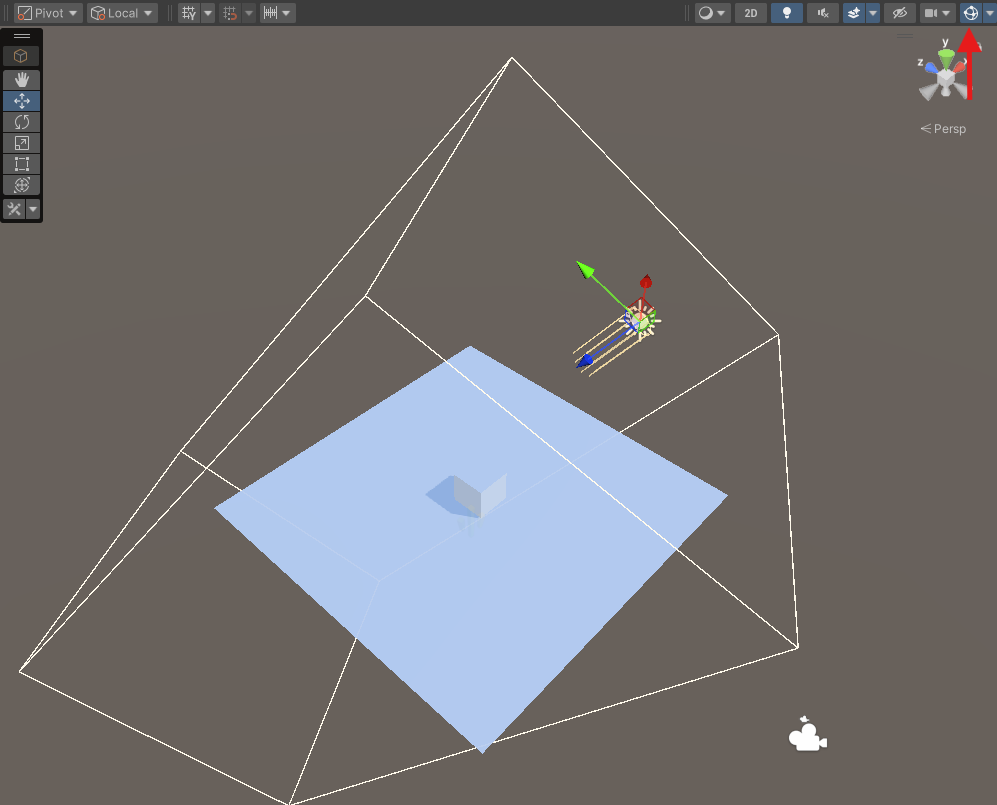
Hi, the AI reply is probably the reason why they’re not visible where you expect them. In Unity you can enable ShadowHelper in the Light componnet at the bottom to make the frustum of the Light visible in the Editor.
Ok. Is there documentation on the settings? I checked the API, but I only find classes Light and LightData.
What kind of values should I use for shadow width, height and distance, around 10 or around 10000? I tried the ?debuglights flag in the URL.
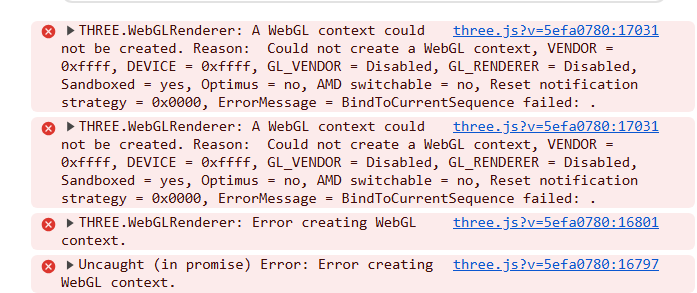
And now, after I played around with the values the scene will not load at all anymore. I restarted the server, restarted Unity, but nothing works. This is what I see in the console log:
The values depend on your scene size. It sounds like you crashed your browser’s WebGL context by entering huge values for the shadowmap size?. Usually restarting chrome helps here (the Three.WebGL renderer can’t create a WebGL context).
I tried the ?debuglights flag in the URL. < you should see gizmos in the browser then that visualize the shadowmap bounds. But when you add the component in Unity you should see a Gizmo as well to help adjust positioning and size. Make sure the shadowmap resolution is at a reasonable size (usually between 2k and 4k, this refers to the resolution, the higher the value the sharper but also the larger the texture that will be created). Width and height refer to the size of the Light’s shadow camera. These values are in three.js units / Unity units. So if your scene is ~100 meter wide then setting it to ~110 width and height could be appropriate to cover it all.
But I had to set the height to actually indicate the distance from the directional light. The scene is approximately 100 by 100 units (meters) and I have some trees and houses that are around 10 units high, so I figured a height of 10, width of 150 and distance of 150 would be fine, but it wasn’t until I changed the height to 100 that all the shadows appeared.
I’m still struggling with the lighting. I have a directional light that represents the sun and provides shadows, that works fine. But the shadow side of my buildings is now very dark, so I want to add another light to light those up a bit. Shadows are not needed.
I tried using an area light, a point light and a second directional light, but nothing works. Neither realtime, nor baked.
Except, when I used the second directional light and disabled the first directional light. Then I did get the light from the second directional light.
So I’m completely confused. The documentation states ‘What you see in Unity is what you get’ but that’s not true for my case. Am I doing something wrong?
normally you should see these Gizmo Box when you select a Light with a LightShadowData component on it:
(when not, maybe you have disabled all Gizmos in the Scene on this marked Toggle)
This box shows the shadow rendering boundaries from that Light and also the max distance. So everything in this shape will get a shadow.
For shadow intensity, i have create a component for you to adjust it.
Just place this script into your exported web project under “src/scripts” and add it in Unity to a Light by clicking on “Add Needle Component” and search for “LightShadowIntensity”.
So you can now adjust the intensity
Hope that will help you!
import { Behaviour, Light, serializable } from "@needle-tools/engine";
import { DirectionalLight, Object3D, PointLight, SpotLight } from "three";

type ShadowLight = DirectionalLight | SpotLight | PointLight;

/**
 * Controls how dark the shadows of the Light on this object are.
 * 0 means no visible shadow, 1 means full shadow.
 */
export class LightShadowIntensity extends Behaviour {

    /** Shadow darkness from 0 (invisible) to 1 (full). */
    @serializable()
    get shadowIntensity(): number { return this._shadowIntensity; }
    set shadowIntensity(value: number) {
        this._shadowIntensity = Math.min(1, Math.max(0, value));
        this.apply();
    }
    private _shadowIntensity: number = 1;

    start() {
        this.apply();
    }

    onValidate() {
        this.apply();
    }

    private apply() {
        const light = this.findShadowLight();
        if (light) light.shadow.intensity = this._shadowIntensity;
    }

    /** The Light component either is the three.js light itself or adds one as a child. */
    private findShadowLight(): ShadowLight | null {
        if (!this.gameObject?.getComponent(Light)) return null;
        if (isShadowLight(this.gameObject)) return this.gameObject;
        for (const child of this.gameObject.children) {
            if (isShadowLight(child)) return child;
        }
        return null;
    }
}

function isShadowLight(obj: Object3D): obj is ShadowLight {
    return (obj as ShadowLight).isLight === true && "shadow" in obj && !!(obj as ShadowLight).shadow;
}
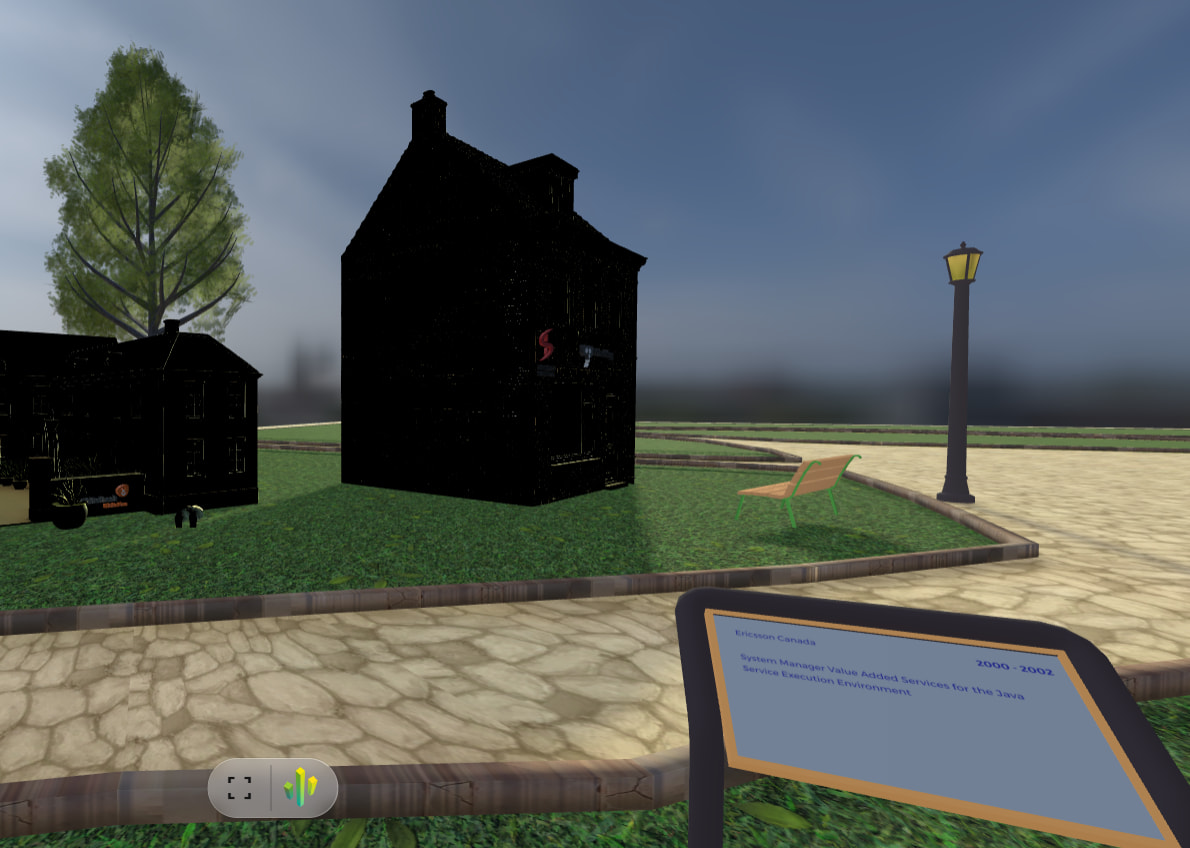
Thanks for the script. It does work on the shadows, but unfortunately the shadow side of my buildings is still very dark. As you can see in the images below, the shadows of the lamppost and bench are indeed almost gone at intensity 0.25, but the buildings are still dark.
I can get that, but I’d like you to look at two other screenshots first.
The first is when I add a second directional light on the opposite side of the scene and disable the first directional light. The settings are the same, except that this second light does not cast shadows, I want it to be a fill-in light. Intensity is the same for both. Now the buildings are lit fine.
When I then enable the first directional light again and have both lights illuminate the scene we’re back to the black buildings. And I can see the shadows on the ground, which is not what I would expect if I have two lights with the same intensity. The second light should ‘cancel out’ the first light’s shadows.
So it looks like the second directional light is now completely ignored. It does not matter if I set this second light to realtime or baked. And that also happens when I use an area light or point light.
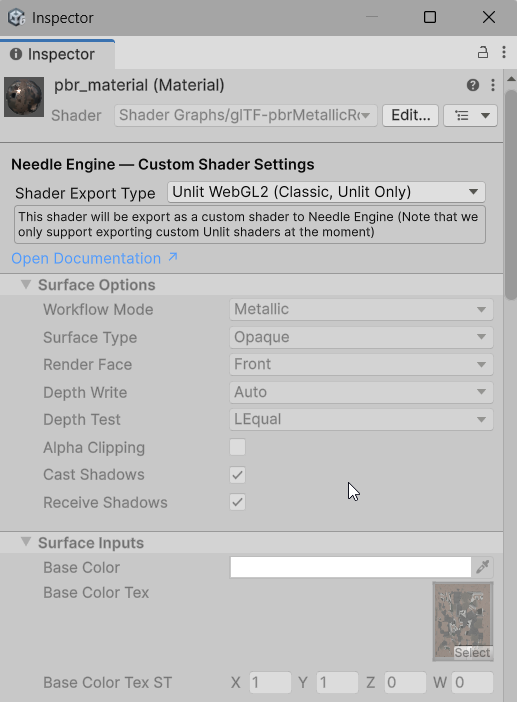
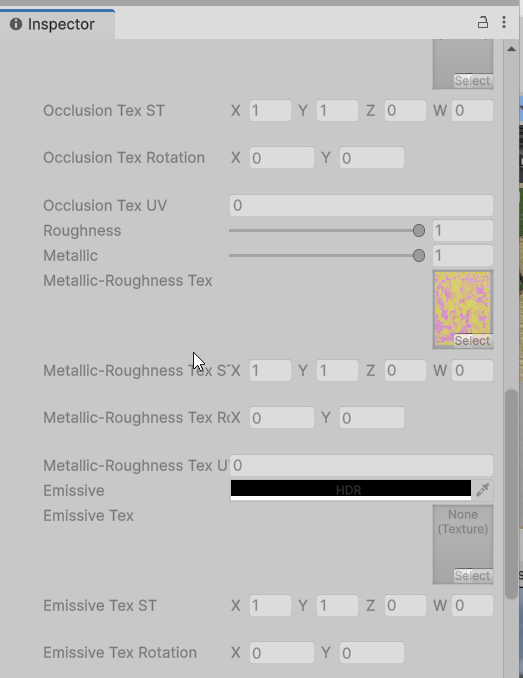
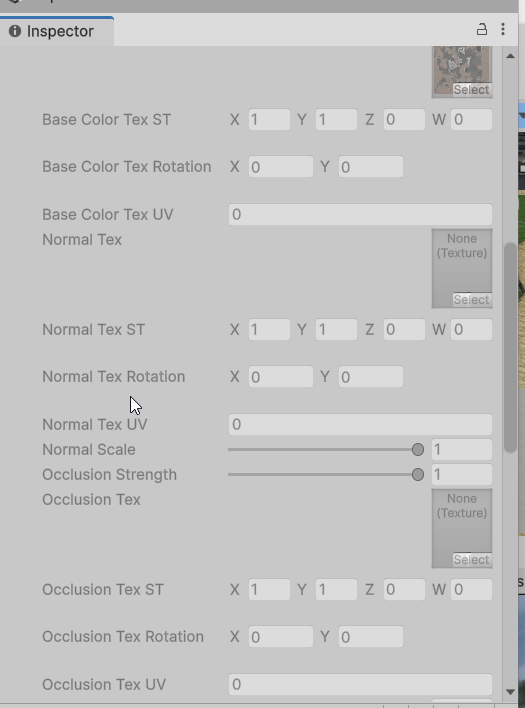
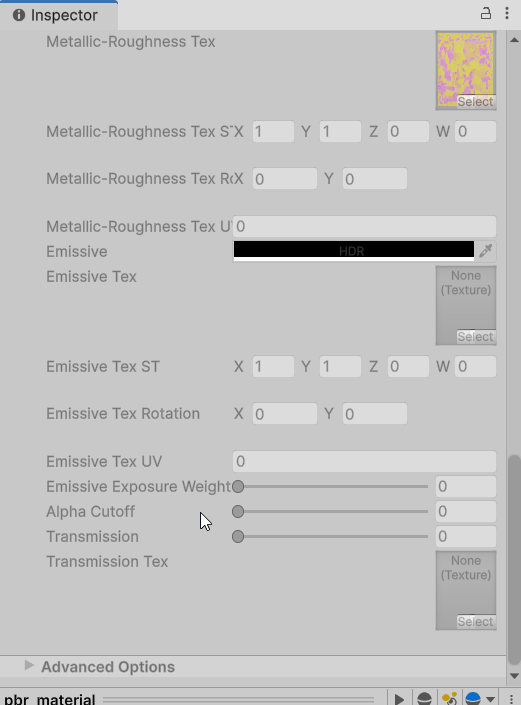
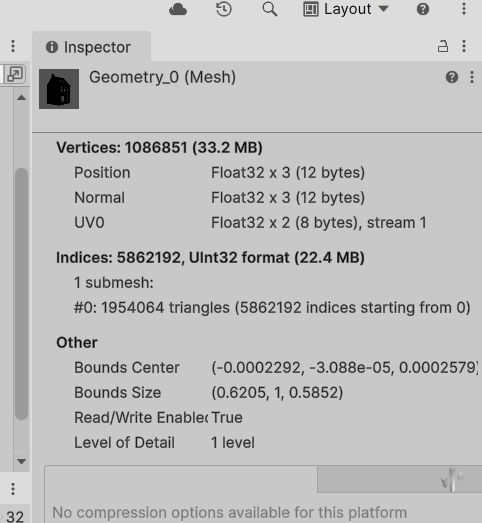
Here are the screenshots of the material on the building and one of the mesh. I don’t see any vertex color, but maybe I’m missing something.
I did notice that the shader says Unlit only, which sounds weird as it seems to be lit anyway. And when I changed this to MaterialX (the only other option apart from None) the building became completely invisble. And all other buildings as well.
For Shader Export Type: When the shader is compatible to glTF (like in your case) or a default Unity Lit/Unlit shader, you don’t need to select there anything. Just select none (default).
Your selected option here is not suitable for this type of shader: